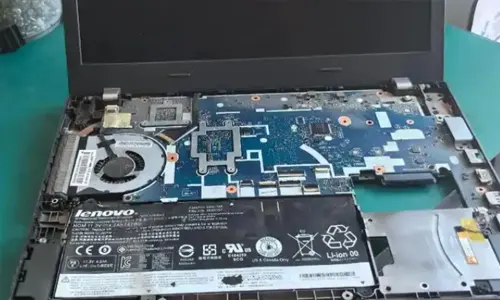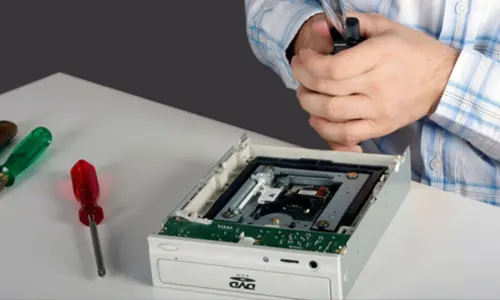
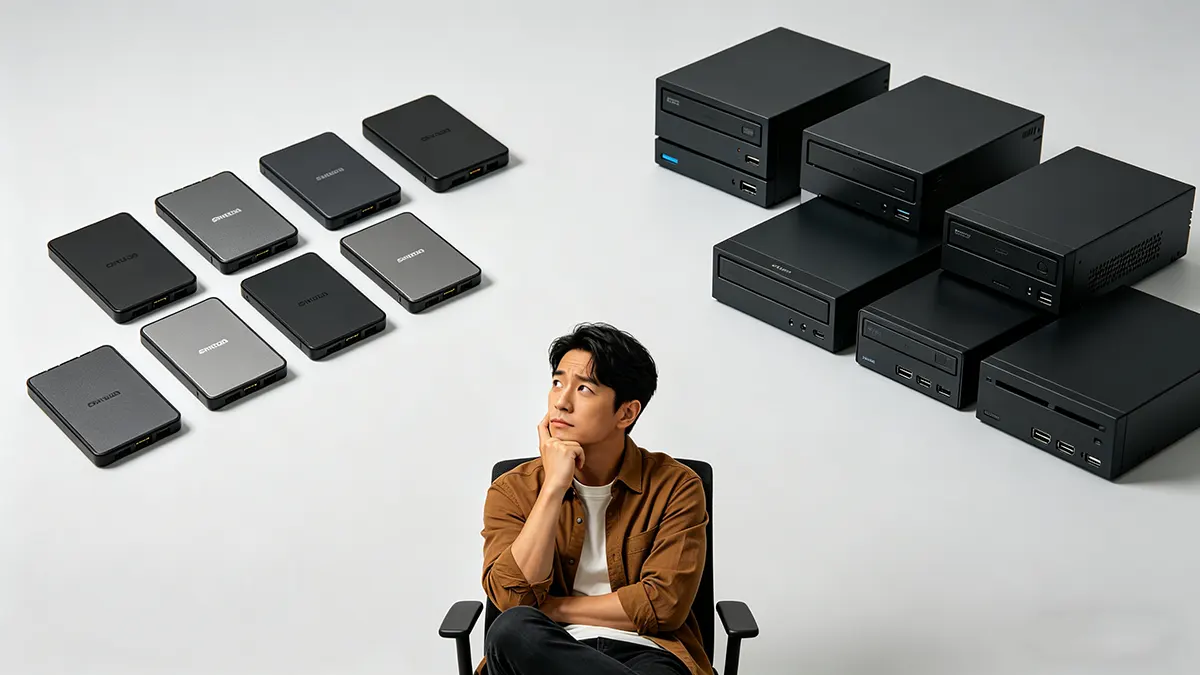
In the era of cloud storage and streaming, have optical drives truly become obsolete in 2026? Quite the opposite – from installing operating systems, playing your treasured CD/DVD collections, to enterprise cold data backup and retro gaming, optical drives remain an indispensable tool in countless scenarios. Faced with a variety of products such as internal, external, Blu-ray, and burners, many people simply don't know how to choose.
This ultimate guide will clear up all your doubts. Whether you are a casual home user, an audiophile, or an IT administrator, you will find the drive that suits you best.
1. Why Do You Still Need an Optical Drive in 2026?
Before diving into the selection, let’s quickly recap 5 reasons why optical drives are still essential:
- OS reinstallation & driver installation – Many motherboards and legacy software still come on optical discs; when USB boot fails, a disc is a reliable fallback.
- Car & home audio – Your car might only support CDs, and your child’s school English listening discs also need to be played.
- Cold data storage – Blu-ray discs (50GB~100GB) can last 50+ years, far more secure than HDDs or SSDs, and are immune to electromagnetic interference.
- Retro gaming & old media – Countless classic games, family videos, and graduation memory discs need to be read.
- Legal CD ripping – Audiophiles pursue lossless quality, and optical drive ripping remains the first choice.
Now, let’s get down to business: how do internal, external, Blu-ray, and burners differ, and how should you choose?
2. Four Types of Optical Drives Explained at a Glance
2.1 Internal Optical Drive
Definition: A drive installed inside a desktop computer’s 5.25-inch drive bay, connected via SATA interface.
Pros:
- Fastest speed (SATA 3.0 theoretical 6Gbps, actual read up to 24X DVD or 16X Blu-ray)
- No extra power adapter – powered directly by the PC power supply
- Cheapest – basic DVD drives start at just $10–20 USD
Cons:
- Desktop only – cannot be used with laptops
- Requires manual installation skills
- Occupies a drive bay – many modern cases have eliminated 5.25-inch slots
Best for: DIY desktop users, enterprise bulk purchases, budget-conscious fixed-location users.
2.2 External Optical Drive
Definition: An external device that connects via USB (mostly USB 3.2 Gen1/Gen2) to laptops or desktops.
Pros:
- Plug-and-play, no disassembly – works with ultrabooks, MacBooks, and even tablets (with OTG)
- Compact size – some models are only slightly larger than a disc, easy to carry
- Some models include a USB hub or card reader for extra functionality
Cons:
- $10–20 more expensive than equivalent internal drives
- Occupies a USB port; some ultra-slim models require external power (dual USB cables or DC adapter)
- Speed limited by USB interface, but real-world difference is minor (DVD 8X~24X is sufficient)
Best for: All laptop users without an internal drive, multi-device workers, families sharing one drive.
2.3 Blu-ray Drive (BD-ROM / BD-RE)
Definition: A drive that can read Blu-ray discs (25GB/50GB/100GB etc.) and is backward compatible with DVD and CD. BD-RE models also support Blu-ray burning.
Pros:
- Ultra HD playback – supports 1080p and even 4K Blu-ray discs (with proper software)
- Massive storage – a single 50GB Blu-ray disc replaces about 11 DVDs
- Archive reliability – Blu-ray recordable discs last 30~50 years
Cons:
- Expensive – basic Blu-ray reader $40–80, Blu-ray burner $100–200+
- Requires decent PC specs – playing Blu-ray movies needs HDCP-compliant graphics and display
Best for: Movie enthusiasts (collecting Blu-ray originals), video creators (archiving large footage), enterprise long-term backup.
2.4 Burner (DVD Burner / Blu-ray Burner)
Definition: A drive that can both read and write data to blank discs. Most drives sold today are actually “Combos” (read+write), but “burner” usually refers to models with good writing speed and reliability.
Pros:
- Two-in-one – reads and writes, great for data distribution, music CD creation
- Supports multiple disc types: CD-R/RW, DVD±R/RW, DVD-RAM, BD-R/RE
- High-end models support LightScribe or LabelFlash to print labels directly on the disc
Cons:
- 30–50% more expensive than read-only drives
- Write speed specs can be inflated – actual performance depends on high-quality discs
- Long continuous burning generates heat, especially on external units
Best for: Individuals or small businesses needing regular backups, music/video editors, DIY gift disc creators.
3. Key Specifications Comparison Table (2026)
| Feature | Entry (DVD-ROM) | Mainstream (External DVD Burner) | Enthusiast (Internal Blu-ray Burner) | Professional (External 4K Blu-ray Burner) |
|---|---|---|---|---|
| Interface | USB 2.0 / 3.0 | USB 3.2 Gen1 | SATA 3.0 / USB 3.2 Gen2 | USB 3.2 Gen2×2 / Type-C |
| Max Read Speed | DVD 8X / CD 24X | DVD 24X / CD 48X | BD-ROM 12X / DVD 16X | BD-ROM 16X / 4K UHD support |
| Max Write Speed | N/A | DVD±R 8X | BD-R 16X / DVD±R 16X | BD-R 16X / BD-R DL 8X |
| Power Supply | USB bus powered | Single USB (some dual-head) | Host SATA power | External 12V adapter |
| Estimated Price (USD) | $8–15 | $20–35 | $80–150 | $150–300+ |
| Best Use Case | Occasional disc reading, driver installs | Daily backups, music CD burning | HD movies, large-volume archiving | 4K Blu-ray originals, enterprise cold storage |
4. Choose by Use Case: 4 Typical User Profiles & Best Options
Profile 1: Student / Office worker with an ultrabook, occasional disc reading (courseware, CDs, software)
Recommendation: Basic external DVD-ROM (read-only)
Why: Around $10–15, USB powered, palm-sized, fits easily in a backpack. If budget allows $5 more, get a DVD burner to help classmates burn assignments.
Note: Avoid ultra-cheap “no-name” drives – many use recycled chips and have poor read reliability.
Profile 2: Audiophile / car CD enthusiast – needs to rip or burn lossless CDs
Recommendation: External DVD burner with “precise audio ripping” support (e.g., models using Realtek or MediaTek controllers)
Why: Burn speed doesn’t need to be extremely high; focus on buffer size (2MB+) and buffer underrun protection. Choose a model with a separate power port to avoid power failure during burning.
Tip: Confirm that the drive supports “CD-TEXT writing” so your car stereo can display track names.
Profile 3: Video editor / photographer – needs long-term archiving of raw footage (50GB~100GB)
Recommendation: Internal Blu-ray burner (e.g., Pioneer, LG, Asus BD-R/RE models)
Why: A single 50GB Blu-ray disc costs only $1.5–2, far cheaper than hard drives. Use burning software to create “multi-volume sets” to split large projects across several discs with automatic verification.
Alternative: If you don’t have a desktop, choose an external USB Blu-ray burner, but expect a 30–50% price premium.
Profile 4: Home user – wants to watch Blu-ray movies and occasionally back up old photos
Recommendation: External Blu-ray reader (BD-ROM)
Why: Around $40–50 lets you enjoy Blu-ray original quality; you don’t need burning. Important: you must pair it with playback software (e.g., CyberLink PowerDVD, VLC with plugins) to decode encrypted commercial Blu-ray discs.
Warning: 4K Blu-ray requires an AACS 2.0 compatible drive and Intel SGX (removed from newer CPUs) – verify your hardware first.
5. New Tech Trends to Watch in 2026
Keep an eye on these features to make your drive last another 5 years:
- USB 3.2 Gen2×2 (20Gbps) interface: High-speed external Blu-ray drives now support this, enabling smooth playback of uncompressed 4K Blu-ray originals.
- M-DISC (Millennial Disc) support: Some burners can write M-DISC media, theoretically preserving data for 1,000 years – perfect for family archives or legal evidence.
- Automatic silent speed reduction: High-end models automatically reduce speed when reading dirty/damaged discs, minimizing vibration and noise.
- Online firmware updates: Used to update disc encryption keys (to counter new copy protections).
6. Quick FAQ
Q1: My external optical drive doesn’t respond when plugged in.
A: ① Try a different USB port (avoid front-panel ports on desktops). ② On desktops, install motherboard chipset drivers. ③ On tablets, enable OTG and provide external power if needed.
Q2: Can a Blu-ray drive play commercial Blu-ray movies?
A: Hardware-wise yes, but you need licensed playback software (e.g., PowerDVD) or open-source MakeMKV + VLC (for personal backup only).
Q3: Can a DVD burner burn Blu-ray discs?
A: Absolutely not! The laser wavelengths are different (DVD 650nm, Blu-ray 405nm). You must buy a dedicated Blu-ray burner.
Q4: How to install an internal drive in a modern case?
A: First ensure your case has a 5.25-inch bay (many compact cases have removed them). Connect SATA data and power cables, then enable the port in BIOS.
Q5: Can a scratched disc still be read?
A: Light scratches can sometimes be polished with toothpaste or a repair kit. For deep scratches, try a different drive (some have stronger error correction). Look for “smart error correction” features when buying.
Final honest advice: Don’t buy the most expensive drive “just in case,” and don’t go for the cheapest unbranded recycled unit. In 2026, the optical drive market is mature – a $20–30 external DVD burner meets 90% of home needs. If you are a data hoarder, go straight for a Blu-ray burner – those precious photos and videos deserve a 100-year medium.
Need specific model recommendations? Visit our Optical Drive Store – every product lists read/write speeds, interface type, and real-user burn success rates. Our one-on-one support can also verify compatibility for you. Click the link below to find your next optical drive ?
*This original guide is up-to-date as of April 2026. Some technical details may change due to firmware updates. Please check with our support before purchasing.